PDFEnrich · iPhone PDF editing guide
How to edit a PDF on iPhone without installing another app
Safari can handle a focused PDF edit without moving the document through another mobile app. Start with one small change, use touch-friendly controls, and verify the saved copy from Files.
Reviewed July 29, 2026 by PDFEnrich Product Engineering.
Edit a PDF on iPhoneWorked product example: Correct one date from an iPhone
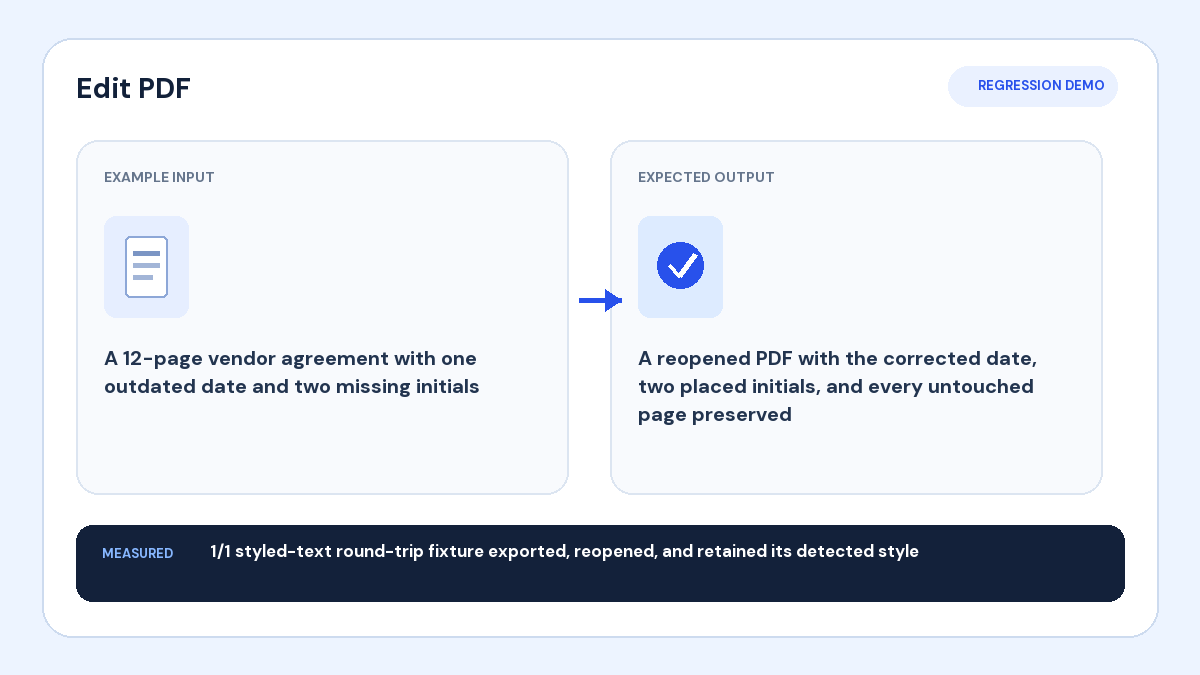
Input: A PDF in the Files app contains one outdated date on page two.
Action: Open it in Safari, zoom to the line, replace or cover the old date, and add the corrected date.
Verified result: The saved copy should reopen from Downloads with the correction aligned and every other page present.
1. Open the PDF from Files
In Safari, open PDFEnrich and choose the document from On My iPhone, iCloud Drive, or another Files provider. The supported editor reads the selected file in the browser. Keep the original in Files so the edited download remains a separate copy.
2. Make one precise change at a time
Pinch to zoom before placing text, initials, highlights, or a signature. Use the six-action dock for frequent tools and More for the remaining editor controls. Touch handles are easier to control when the page is zoomed in and the document is not moving underneath your finger.
3. Treat scanned pages differently
If an entire page behaves like a photograph, its visible words are not normal editable text. Run OCR when searchable text matters, or place a new text box over the correct location for a small visual correction. Never assume a scan became structurally editable just because text is visible.
4. Download and verify in Files
Download the edited PDF, open it from the Safari downloads button or Files, and check the changed page at normal zoom. Confirm page count, orientation, signatures, and any form answers before attaching the downloaded copy to a message.