PDFEnrich · Android PDF signing guide
How to sign a PDF on Android with a typed or drawn signature
A mobile signature should be placed only after the document is complete. Use a typed keyboard-accessible mark or draw carefully, then reopen the downloaded PDF before submitting it.
Reviewed July 29, 2026 by PDFEnrich Product Engineering.
Sign a PDF on AndroidWorked product example: Sign and date a one-page approval
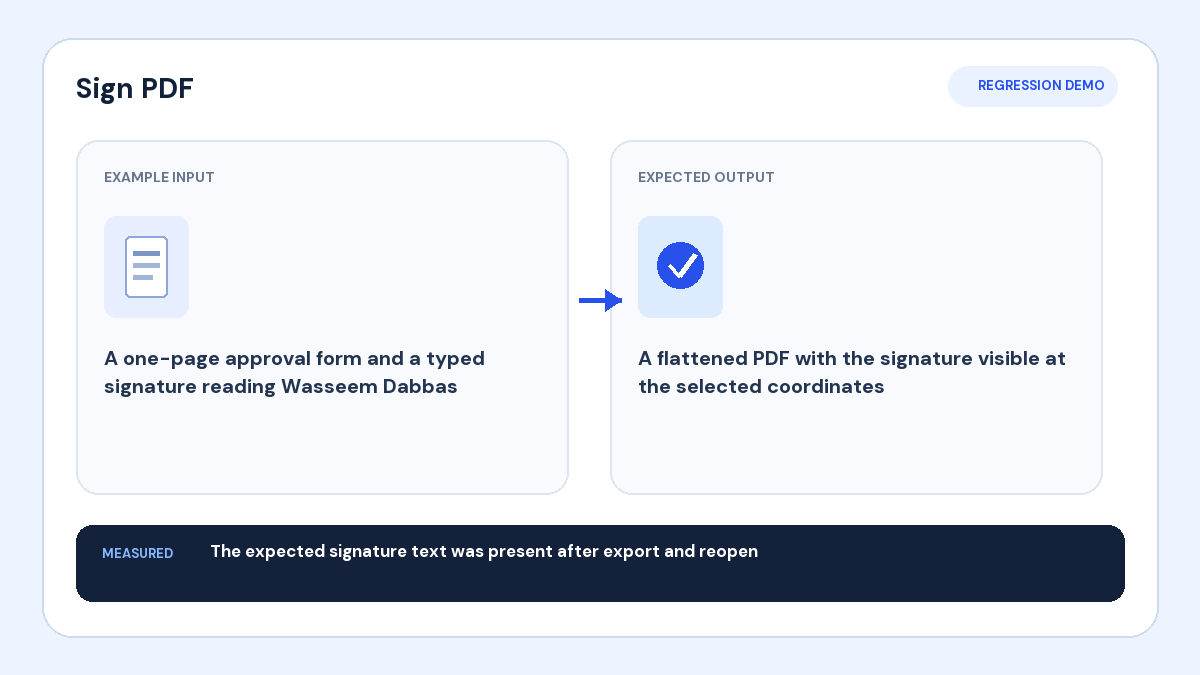
Input: An approval form needs one signature and today's date.
Action: Complete the date first, create a typed or drawn signature, zoom in, and place it on the line.
Verified result: The reopened download should show both marks at readable size without covering surrounding text.
1. Finish the document before signing
Read every page and complete required text, dates, checks, and initials first. Keep the source copy. A signature should confirm the version you reviewed, not an incomplete draft.
2. Choose the signature method
Type your name for a fast keyboard-accessible signature, draw with a finger or stylus, or upload a tightly cropped image. A typed alternative is useful when precise drawing is difficult on a small screen.
3. Place the mark at useful zoom
Zoom into the signature line, place the mark, and resize it without covering labels or nearby clauses. Check every initials line separately. Switch out of the signing tool before scrolling long distances so the mark does not move accidentally.
4. Understand and verify the result
PDFEnrich places a visual self-attested signature; it does not issue a digital certificate, notarize identity, or create a third-party signing ceremony. Download the PDF, reopen it from Files or Downloads, and verify every page before submitting it.