PDFEnrich · PDF form completion guide
How to fill and sign a PDF correctly before you submit it
Complete the document before signing it. Use interactive fields when they exist, place answers carefully on flat forms when they do not, and treat the reopened downloaded PDF as the submission copy.
Reviewed July 29, 2026 by PDFEnrich Product Engineering.
Open Fill PDFWorked product example: A one-page approval form with a typed signature
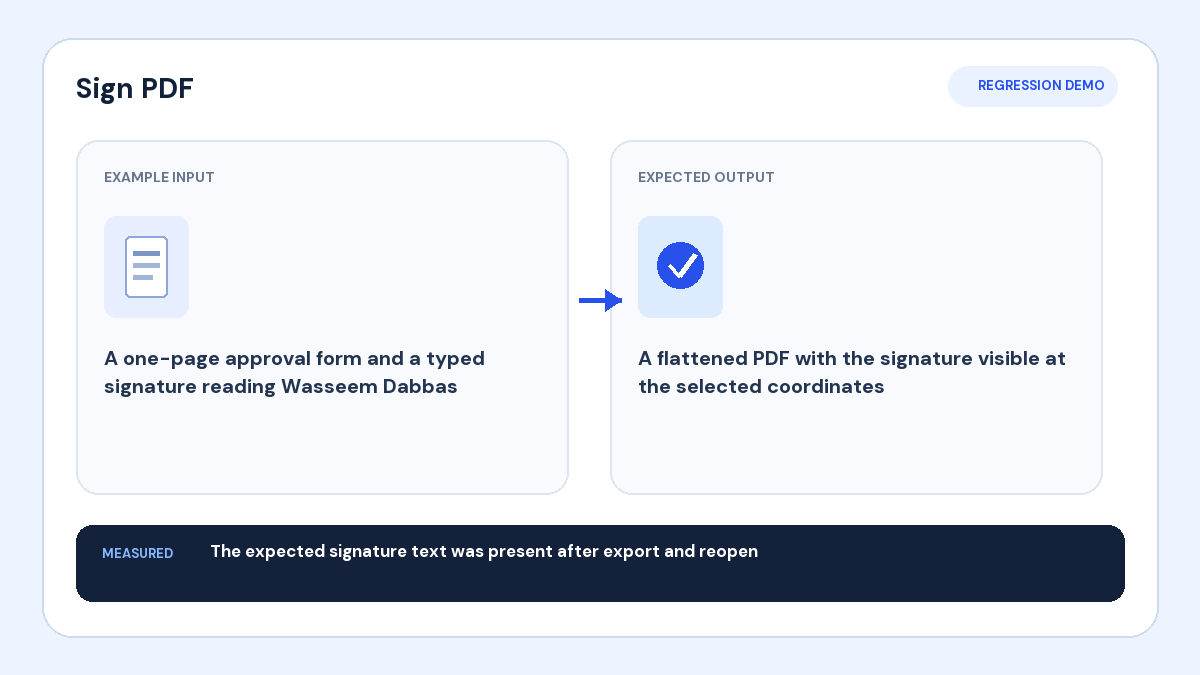
Input: The form needs a visible signature on one specific signature line.
Action: Create the typed signature, place it at the selected coordinates, and export the completed page.
Verified result: The expected signature text remained present after the PDF was downloaded and reopened.
1. Complete every required answer first
Read the entire form before signing. Add text, checks, dates, and initials while the content can still be reviewed. A signature should confirm the finished document, not a version with unanswered fields or unclear attachments.
2. Use interactive fields when available
Supported AcroForm fields can hold text, checkboxes, radio choices, dropdowns, and list selections. A flat form has no interactive widgets, so answers must be placed visually over the correct lines or boxes. Do not cover field labels or instructions.
3. Create the right visual signature
Type a name for a keyboard-accessible signature, draw with a pointer or touchscreen, or upload a closely cropped image. A transparent PNG usually produces the cleanest uploaded result. Resize the mark to fit the line without obscuring nearby text.
4. Understand what the signature proves
PDFEnrich self-signing places a visual self-attested signature and flattens it into the exported PDF. It does not issue a cryptographic certificate, verify government identity, provide notarization, or guarantee legal acceptance. Use an approved signature service when a recipient requires those controls.
5. Reopen the exact submission copy
Download and reopen the finished PDF. Check every required field, signature, initial, date, attachment, and page. Confirm the page count and filename, then submit the same verified download rather than an earlier draft.