
PDFEnrich · Scanned PDF editing guide
How to edit a scanned PDF when the page is really an image
A scanned PDF stores page photographs, not ordinary paragraphs. Decide whether you need searchable text, a small visible correction, or a complete reconstruction before changing it.
Reviewed July 29, 2026 by PDFEnrich Product Engineering.
Run OCR on the scanWorked product example: Make a two-page phone scan searchable
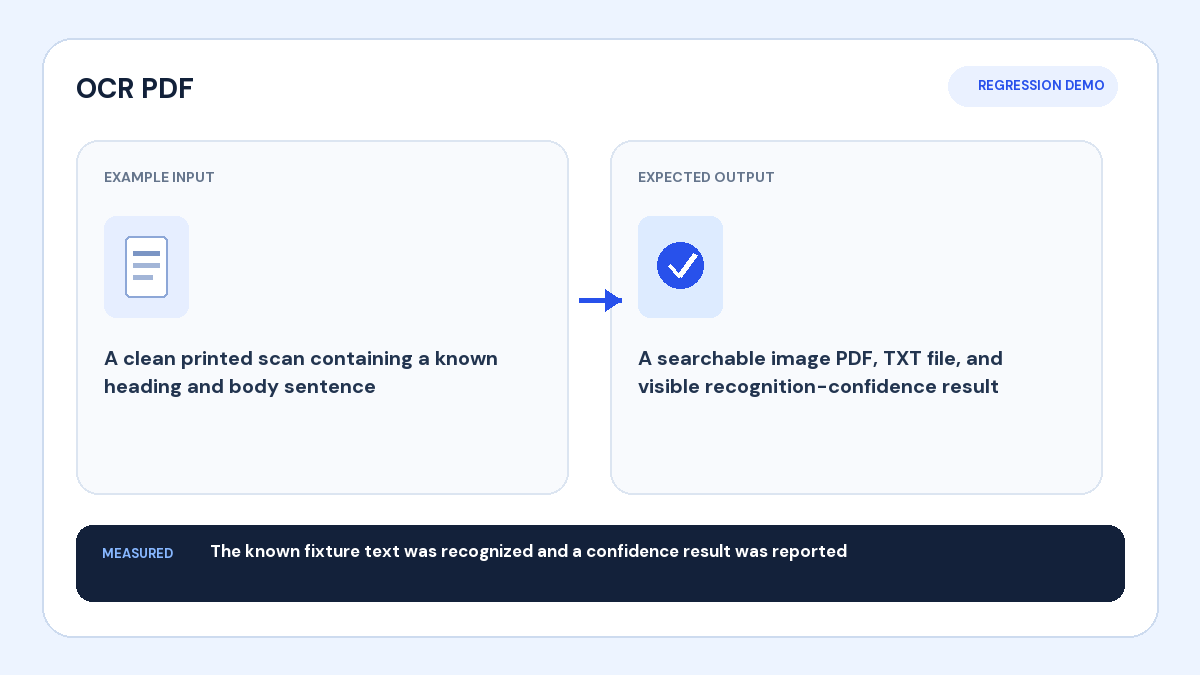
Input: A phone-scanned form contains clear printed English text but no selectable words.
Action: Run OCR with the correct language, download the searchable PDF, and search for a known reference value.
Verified result: A successful check finds the reference text while keeping both original page images visible.
1. Confirm that the page is image-only
Open the PDF and try to select a single word or search for a phrase that is clearly visible. If the whole page selects as one object or Search finds nothing, the page is probably an image. Mixed PDFs can contain both searchable and scanned pages.
2. Choose OCR or a visual correction
Run OCR when recipients need to search, copy, or convert the text. For one small visible correction, a new text box may be faster, but it does not change the words inside the underlying image. Keep the unmodified scan whenever document history or evidence matters.
3. Improve the source before OCR
Straighten rotated pages, crop empty borders, and use an evenly lit scan with readable contrast. Select the main document language. Glare, folds, handwriting, stamps, faint carbon copies, and multi-column forms need more manual review than clean printed pages.
4. Verify names, dates, and numbers
Search the OCR result for a known phrase, then compare important names, dates, totals, decimal points, and identifiers against the scan. OCR confidence is not proof of accuracy. Reopen the exported PDF and confirm the text layer aligns with the visible page.