PDFEnrich · PDF to Word fidelity guide
How to convert PDF to Word without losing the formatting you need
No converter can promise perfect Word structure from every PDF. Choose the output mode based on what you need to edit, then review the layout zones most likely to change.
Reviewed July 29, 2026 by PDFEnrich Product Engineering.
Convert PDF to WordWorked product example: Convert a two-column report
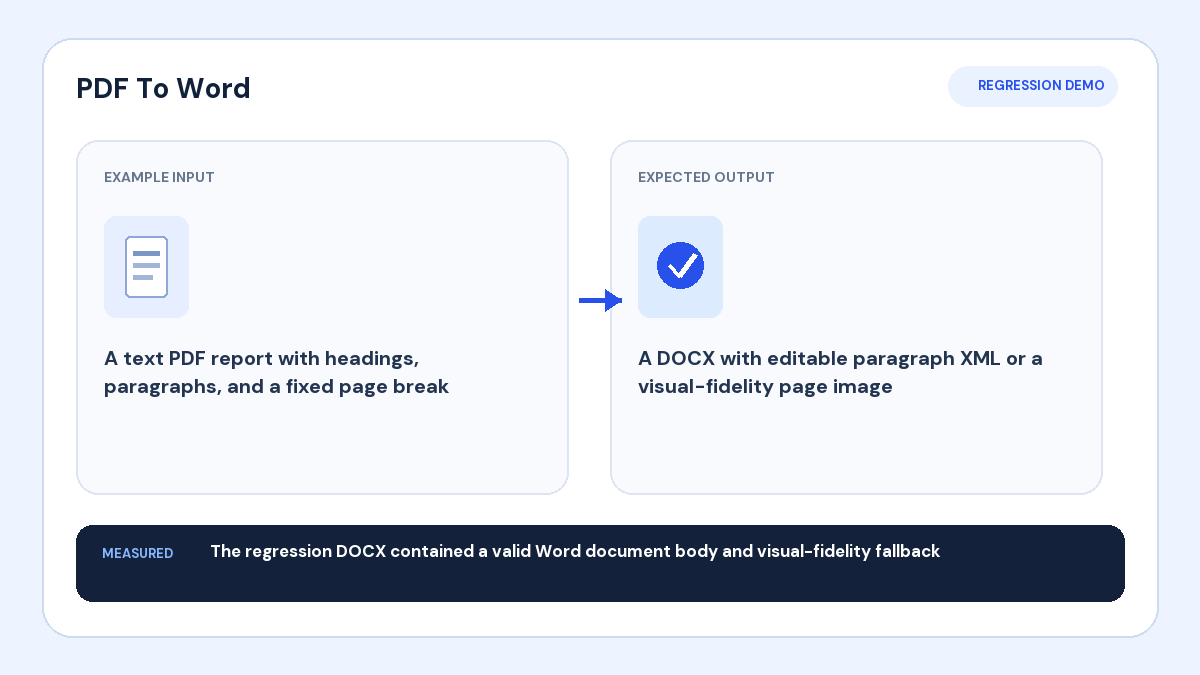
Input: A report contains headings, two text columns, a table, and fixed page breaks.
Action: Create an editable DOCX, then compare its reading order and table structure against the source.
Verified result: Useful text should remain editable, while ambiguous columns and table cells receive deliberate manual review.
1. Define what formatting must survive
List the elements that matter: editable paragraphs, headings, tables, columns, page breaks, fonts, images, or exact visual appearance. A mode optimized for editing cannot always preserve every positioned element exactly.
2. Choose editable, OCR, or visual fidelity
Use Editable for reusable text and normal document revision. Use OCR when the PDF pages are images. Choose Visual fidelity when matching the page appearance is more important than editing individual words, because page images can preserve appearance without reconstructing the original document model.
3. Review known risk zones
Compare multi-column reading order, wrapped table cells, headers, footers, footnotes, floating labels, custom fonts, and manual line breaks. PDF fragments that look connected on a page may not contain enough structure to rebuild the original Word layout automatically.
4. Save a verified working copy
Open the DOCX in the Word-compatible editor you plan to use, inspect each risk zone, and correct structure before distribution. Keep the original PDF as the reference and avoid presenting a reconstructed Word file as the untouched source.