PDFEnrich · PDF to Word formatting guide
How to convert PDF to Word and choose the right layout mode
PDF describes where page elements sit; Word describes how a document flows. Choose editable reconstruction for reusable text, OCR for image-only pages, or visual fidelity when appearance matters more than editing.
Reviewed July 29, 2026 by PDFEnrich Product Engineering.
Open PDF to WordWorked product example: A text report with headings and a fixed page break
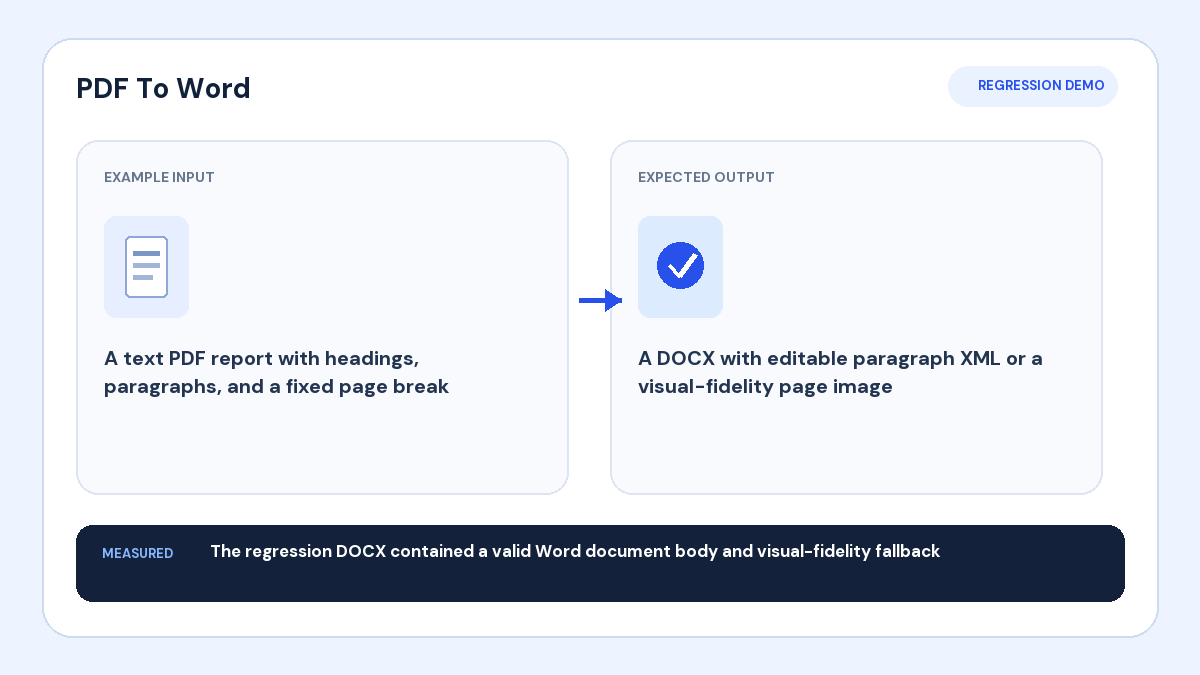
Input: The source PDF contains positioned headings, paragraphs, and a known page boundary.
Action: Create editable DOCX paragraph structure and retain a visual-fidelity fallback.
Verified result: The regression DOCX contained a valid Word document body and a working visual fallback.
1. Choose the output based on your next task
Use Editable when you need to revise wording, copy paragraphs, or reuse headings. Use Scanned PDF — editable OCR when the pages are images. Use Visual fidelity when the document mainly needs to look like the source inside Word and full text editing is less important.
2. Know what editable reconstruction can preserve
Editable conversion can retain extracted text order, page breaks, indentation, spacing, common font styling, and tab-aligned columns. It cannot recover the original authoring structure perfectly because PDF text may be stored as individually positioned fragments rather than paragraphs, tables, or flowing columns.
3. Treat tables and columns as review zones
Check row-to-column relationships, wrapped cells, multi-column reading order, floating text boxes, headers, footers, and footnotes. A visually correct PDF can still have ambiguous extraction order. Rebuild critical tables in Word when their structure matters more than a quick approximation.
4. Use OCR only for image-only pages
Select the document’s main language and compare recovered names, dates, totals, and identifiers against the visible scan. OCR creates machine-recognized text and can misread low-resolution characters, handwriting, shadows, or mixed languages. Keep the scan as the source of truth.
5. Verify the DOCX in a real editor
Open the result in Word, LibreOffice, or another DOCX editor. Compare page count, headings, lists, paragraph order, fonts, columns, tables, images, and page breaks. Save the corrected DOCX as the editable master and retain the source PDF for visual reference.