PDFEnrich · Practical PDF editing guide
How to edit a PDF online without breaking the original layout
The safest edit is the smallest change that solves the problem. Identify whether the page contains native text or a scan, choose the right tool, and verify the exported copy like a recipient would.
Reviewed July 29, 2026 by PDFEnrich Product Engineering.
Open Edit PDFWorked product example: A date correction with two missing initials
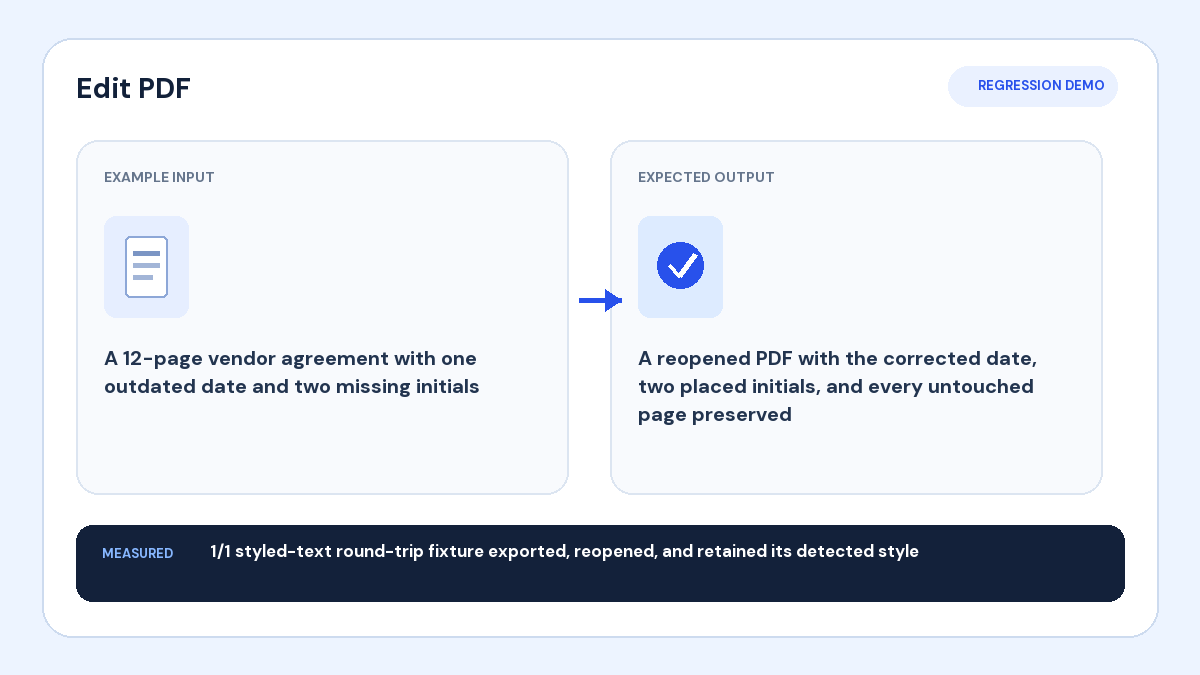
Input: A 12-page vendor agreement has one outdated date and two blank initials lines.
Action: Replace the supported date text, place two initials, and leave the other pages untouched.
Verified result: The regression export reopened successfully, retained the detected text style, and preserved untouched pages.
1. Identify what kind of PDF you have
Try selecting a word. Selectable text usually means the page contains native PDF text; an entire page that behaves like one image is probably scanned. Native text may support direct replacement. Scans need OCR for searchable text, or a carefully placed new text box when only a small visible correction is required.
- Use Search to confirm whether important words exist as native text.
- Do not assume a visible word is editable just because it looks like normal text.
- Keep an untouched source copy before changing anything.
2. Choose the least invasive edit
Replace supported detected text when the original font and layout can be approximated. Add a new text box for missing information. Use highlights, notes, shapes, or drawing when the goal is review rather than rewriting. Avoid flattening the whole document unless the workflow specifically requires it.
3. Match the surrounding page
Use a readable font size, align the baseline with nearby text, and leave enough room for longer replacement wording. Original embedded fonts are not always available in the browser, so line breaks and spacing may differ. Zoom in before export and check that the edit does not cover labels, borders, or adjacent content.
4. Review document-wide effects
Check the changed page at normal zoom, then inspect page order, rotation, links, forms, and representative untouched pages. If the PDF contains signatures, remember that changing the file may invalidate an existing cryptographic signature even when the visible signature remains.
5. Export, reopen, and verify
Download the edited copy and reopen it in a second PDF reader. Confirm that the file opens, the edit is visible at the intended coordinates, unchanged text is still selectable when expected, and the page count matches the source. Share only the reopened copy you actually checked.