PDFEnrich · Browser PDF form guide
How to fill out a PDF without Adobe Acrobat
You do not need a desktop subscription to complete many PDF forms. First determine whether the document has interactive fields or a flat page, then use the workflow that preserves the clearest result.
Reviewed July 29, 2026 by PDFEnrich Product Engineering.
Fill out a PDFWorked product example: Complete a flat application form
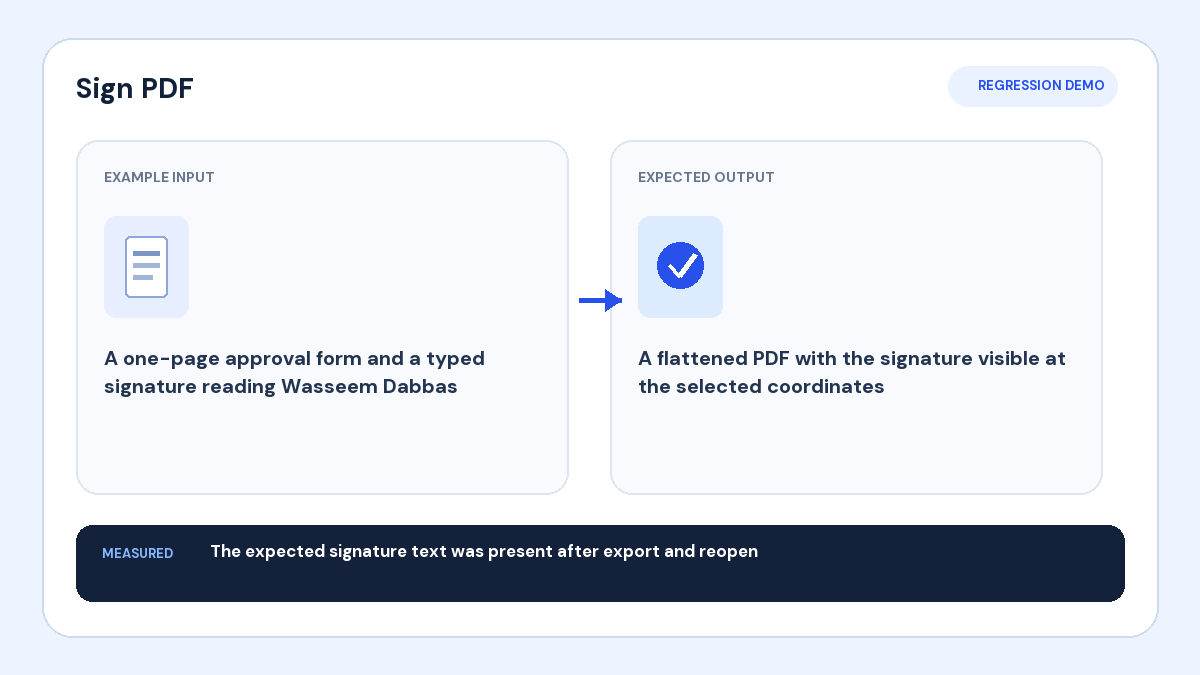
Input: A one-page application displays blank lines but contains no interactive fields.
Action: Place text over each line, add required checks and a date, then review alignment at normal zoom.
Verified result: The final PDF should reopen with each answer readable and every original label unobstructed.
1. Test whether the form is interactive
Click or tap a blank area. A visible cursor, checkbox, dropdown, or focus outline suggests an interactive AcroForm field. If nothing activates, the document may be a flat page that needs visually placed text and marks.
2. Complete existing fields when available
Use the form's text fields, checkboxes, radio options, and lists when supported. Keep answers within expected formats and watch for required fields. Do not flatten until you have reviewed whether the recipient needs editable field values.
3. Place answers on flat forms carefully
Zoom in and align each text box with its line or empty area. Use check marks only inside the intended boxes. Avoid covering prompts, legal wording, or nearby answers, and keep font size readable when the page returns to normal zoom.
4. Review and submit the downloaded copy
Read the form from the beginning, confirm names, dates, numbers, selections, initials, and signatures, then download and reopen it. Submit the exact verified copy and retain the source when your record policy requires it.