PDFEnrich · Mac PDF combining guide
How to combine PDF files on a Mac and verify the page order
A Mac can merge PDFs without converting pages to screenshots. The important work is choosing the right source files, arranging them deliberately, and checking every boundary in the final packet.
Reviewed July 29, 2026 by PDFEnrich Product Engineering.
Combine PDFs on MacWorked product example: Combine a proposal and three exhibits
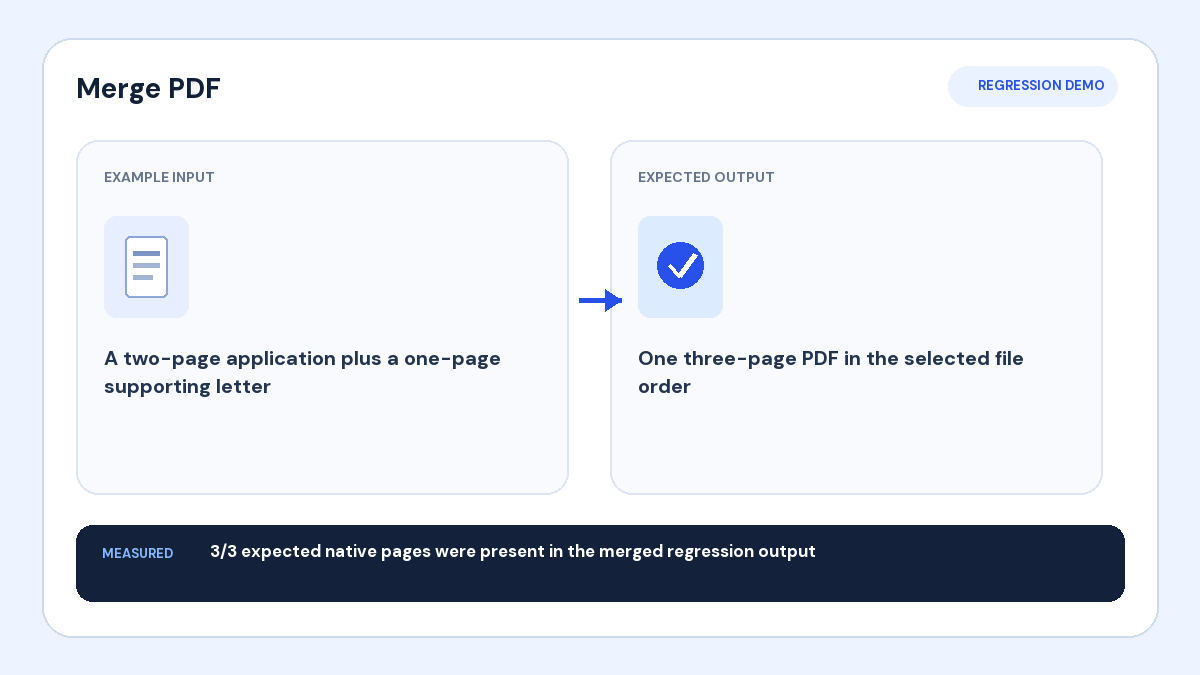
Input: A proposal PDF and three exhibit PDFs are stored in one Finder folder.
Action: Add them in reading order, confirm each source page count, and merge native pages.
Verified result: The final PDF should begin with the proposal and preserve every exhibit transition without duplicates.
1. Prepare a clean Finder folder
Move only the approved source PDFs into one folder and rename them with simple sequence numbers when order is ambiguous. Open each file in Preview or another reader to confirm page count, orientation, and that it is the correct version.
2. Add and arrange the source files
Choose the PDFs in Safari, Chrome, or Edge, then drag whole files into the final reading order. Each source keeps its internal page sequence. If pages inside one PDF are wrong, organize that file before the final merge.
3. Keep native page quality
A native merge copies PDF pages without taking screenshots, preserving selectable text, vectors, page dimensions, and embedded page content. Mixed portrait, landscape, letter, and A4 pages are valid, but check their scroll and print behavior.
4. Verify the complete packet
Confirm the final page count equals the sum of the sources. Inspect the first and last page and every transition where a new source begins. Save the merged download with a clear version name and keep the individual approved source files.