PDFEnrich · PDF page removal guide
How to remove pages from a PDF without deleting the wrong version
Page removal is easy to perform and easy to get wrong. Work on a copy, identify pages by content as well as number, and reopen the export before replacing or sharing anything.
Reviewed July 29, 2026 by PDFEnrich Product Engineering.
Remove PDF pagesWorked product example: Remove a blank scan and duplicate receipt
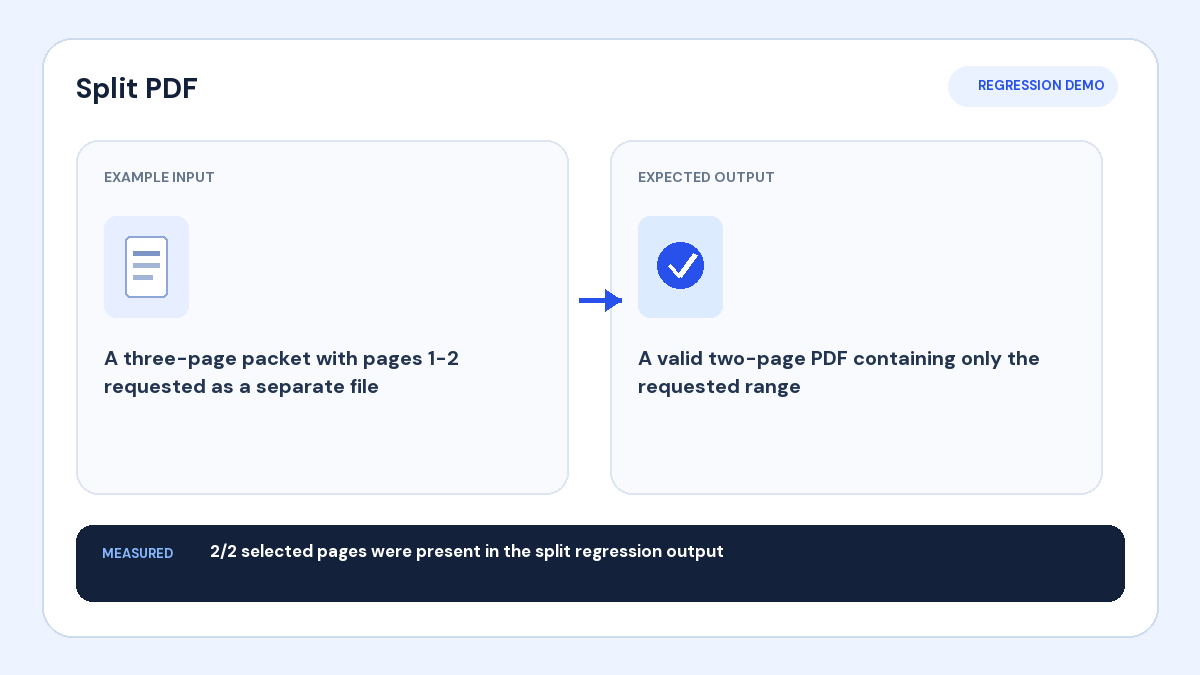
Input: A 14-page packet contains one accidental blank page and one duplicated receipt.
Action: Identify both pages by thumbnail and visible content, remove them, and export the remaining pages.
Verified result: The verified copy should contain 12 pages in the original relative order with both unwanted pages absent.
1. Save the source and name the task
Keep the original PDF unchanged. Write down what must be removed, such as an accidental blank scan, a duplicate, or an outdated appendix. Avoid relying only on page numbers when cover sheets or inserted pages may have shifted the sequence.
2. Match thumbnails to visible content
Use readable thumbnails and open uncertain pages at full size. Confirm headers, page numbers printed on the document, names, or other non-sensitive landmarks before marking a page for removal.
3. Review the remaining sequence
After choosing pages, check the pages immediately before and after every removal. Make sure a section does not begin mid-sentence, an attachment reference still points to the correct exhibit, and no required signature page was selected accidentally.
4. Export, recount, and reopen
Download the result, confirm the expected page count, and reopen it in another reader. Check the first page, last page, and every removal boundary. Share the verified copy under a new filename rather than overwriting the only source.